How to Add A11y Quick Check to Your Chrome Browser and Use Its Features
How to Add A11y Quick Check to Your Chrome Browser:
Step 1: Go to the Chrome Web Store in an opened Chrome browser and search for “A11y quick check” in the search bar. Or copy this direct link in an opened Chrome browser to be brought to the extension and install it.
Step 2: Once installed, approve the terms and conditions of the extension (if applicable).
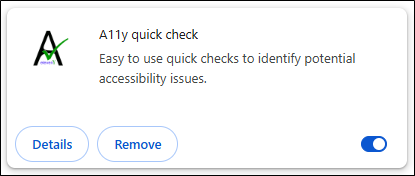
Step 3: Navigate to Chrome’s browser menu bar and click on the Extensions option where you should see “A11y quick check” under your available extensions. Check that the extension is turned on under Chrome’s browser extension management.
How to Use the A11y Quick Check Browser Extension:
Step 1: In Chrome, go to the website you would like to check for accessibility compliance.
Step 2: Navigate to Chrome’s browser menu bar and click on the Extensions option where you should see “A11y quick check” under your available extensions. Then, click on the extension.
Step 3: You will see three tabs under the extension; the Content and Structure tab, the Graphic Media tab, and the Usability and Readability tab.
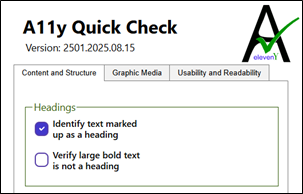
- The Content and Structure tab contains four areas of focus including Headings, Grouping elements, Tables, and Content Types. Each of these areas include check boxes that you can check off and A11y Quick Check will find where specific code in accordance with the type of content/structure you are looking for is used on your webpage or where you may have inaccessible content/structure. For example, if you check off the “Identify text marked up as a heading” box under Headings, you will see areas on your webpage that points to where the “heading” code is used. A11y Quick Check may also give you warnings/tips in areas where it believes you may have lacked certain content/structure coding.
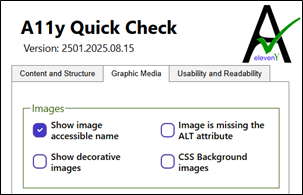
- The Graphic Media tab contains two areas of focus including Images, and SVGs. Both of these areas include check boxes that you can check off and A11y Quick Check will find where specific code in accordance with the type of graphic media you are looking for is used on your webpage or where you may have inaccessible graphic media. For example, if you check off the “Show image accessible name” box under Images, A11y Quick Check will tell you the ALT text that is used on specific images (you can find the definition of ALT text here).
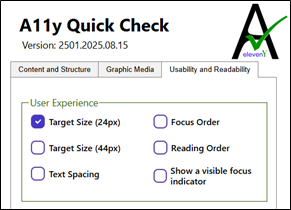
- The Usability and Readability tab contains three areas of focus including User Experience, Roles, Attributes and Live regions, and Accessible name and description. Each of these areas include check boxes that you can check off and A11y Quick Check will find areas on your webpage where usability/readability can be improved. For example, if you check off the “Target Size (24px)” box under User Experience, A11y Quick Check will notify you of areas on your webpage where elements such as buttons, links, and form controls conform or do not conform to the recommended target size.
If you need more information on the tool you are using after checking off a box under any of these tabs, there will be a description of its features in the top right corner of your webpage (for most of the tools).
Step 4: After editing your website according to the identified accessibility issues, re-check your website by closing the extension and then re-opening it.