Siteimprove Accessibility Checker
How to Add Siteimprove’s Accessibility Checker Browser Extension to Your Browser:
Step 1: Choose the browser you would like to add the extension to (Chrome, Firefox, Microsoft Edge, or Opera) and once opened go to its browser web shop which are named below:
- Chrome Web Store
- Microsoft Edge Add-ons
- Firefox Browser Add-ons
- Opera Add-ons
Step 2: Search “Siteimprove Accessibility Checker” in the browser web shop of your selected browser or select one of the direct links below to be brought to the extension and install it.
- Chrome in an opened Chrome browser.
- Firefox in an opened Firefox browser.
- Microsoft Edge in an opened Microsoft Edge browser.
- Opera in an opened Opera browser.
Step 3: Once installed, approve the terms and conditions of the extension (if applicable).
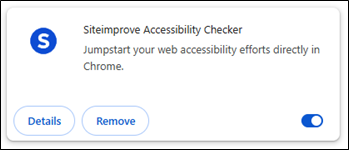
Step 4: Navigate to your browser menu bar and click on the Extensions option where you should see “Siteimprove Accessibility Checker” under your available extensions. Check that the extension is turned on under your browser’s extension management.
How to Use Siteimprove’s Accessibility Checker Browser Extension:
Step 1: Go to the website you would like to check for accessibility compliance (to be able to use the extension you must search for the website in the same browser you downloaded the extension to).
Step 2: Navigate to your browser menu bar and click on the Extensions option where you should see “Siteimprove Accessibility Checker” under your available extensions. Then, click on the extension.
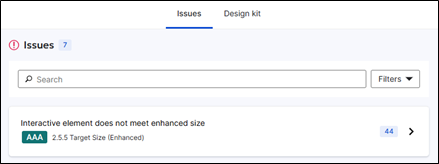
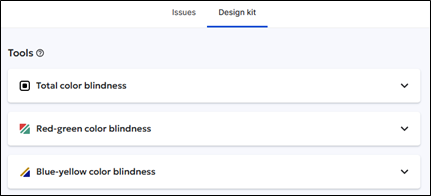
Step 3: You will see two tabs under the extension; the Issues tab and the Design kit tab.
- The Issues tab lists the accessibility issues found on the website, with a description of which specific ADA compliance issue there is (such as non-compliance with ARIA, WCAG Levels A, AA, and AAA, and other recommended accessibility best practices). The Filters drop down menu allows you to filter by the type(s) of issue(s) you are looking for. Once you have selected the issue you would like to focus on, you can then view code examples on how to fix the issue. You may also see the issues highlighted on your webpage.
- The Design kit tab includes a Tools section and a Guidance section. Under the Tools section the user can explore a range of vision impairments on a webpage using the filters. Under the Guidance section the user can view guidance and tips on how they can make their webpage more accessible.
Step 4: After editing your website according to the listed accessibility issues, re-check your website by closing the extension and then re-opening it.