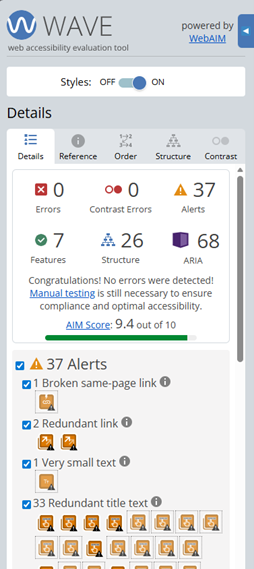
WAVE Evaluation Tool by WebAIM
How to Add WAVE by WebAIM to your browser (Firefox, Microsoft Edge, & Google Chrome)
Step 1: Choose the browser you would like to add the extension to. Follow the steps depending on which browser you choose.
- Google Chrome: Search for “WAVE Evaluation Tool” at Chrome Web Store or select WAVE Evaluation Tool - Chrome Web Store
- Firefox: Search for “WAVE Accessibility Extension” at Mozilla Add-ons or select WAVE Chrome, Firefox, and Edge Extensions
- Microsoft Edge: Search for “WAVE Evaluation Tool” at Edge Add-ons or select WAVE Evaluation Tool - Microsoft Edge Addons
Step 2: Depending on which search engine you choose, follow the steps to download the extension
- Google Chrome:
Press the blue button near the upper right corner that says “Add to Chrome.”
Then press “Add extension.” - Microsoft Edge:
Press the blue button in the upper right corner that says “Get.”
Then press “Add extension.” - Firefox:
Press the blue button that says "Add to Firefox.”
Then press “Add.”
Step 3: Navigate to your browser menu bar and click on the Extensions option where you should see “WAVE Evaluation Tool” under your available extensions. Check that the extension is turned on under your browser’s extension management.
Step 4: For easy access, consider pinning the WAVE Evaluation Tool on your toolbar by selecting the Extension (puzzle piece) icon in the upper right corner of your browser or setting a keyboard shortcut (under Manage Extensions).
How to use the WAVE Extension to Review your Website’s Accessibility
Step 1: Navigate to the website that needs to be checked for accessibility compliance. Make sure it is on the same search engine as the one WAVE was downloaded on.
Step 2: Generate a report by selecting the WAVE extension. If you are using Firefox or Chrome, the keyboard shortcut “control (command for mac users), shift, u” will generate a report.
Step 3: Read the report that pops up on the left side of the screen.
Step 4: Fix any Errors, Contrast Errors and Alerts that pop up. Press the ‘i’ on the right of each Error, Alert, or Contrast Error to get a deeper understanding of what it means, why it matters and what to do to fix the problem.
Step 5: Once there are no more Errors, Contrast Errors, and Alerts, proceed to close the current report by selecting the WAVE extension again or refreshing the page (F5).
Step 6: Generate a new report to re-check your web page for accessibility issues and to view your updated AIM score.